What’s New:
Introducing our exciting new Business Card Scanner! Creating a new contact has never been easier. With this intuitive scanning update, you can effortlessly edit and organize contact details, making networking and managing contacts a breeze
How It Works:
- Open the Mobile App: Select your preferred sub-account.
- Start Scanning: Choose from three options to scan a business card:
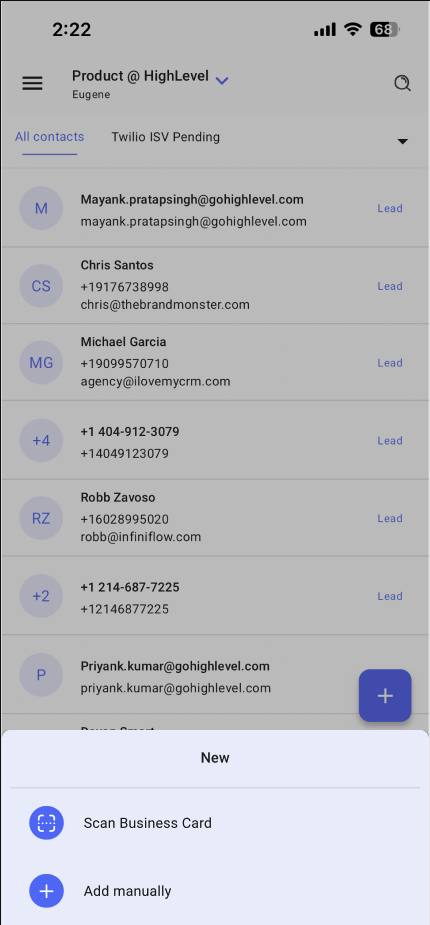
- Go to the contacts page, tap the “+” icon, and select “Scan Business Card.”
- Tap the scan icon on the top right of the contact creation screen.
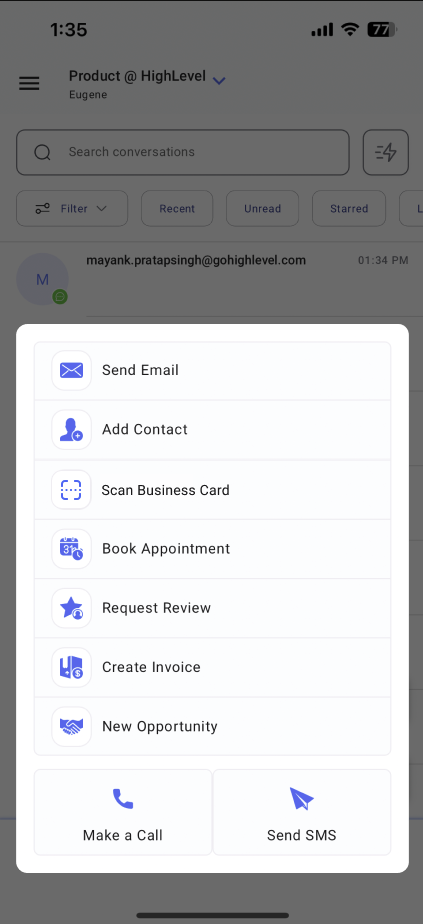
- Tap the bolt quick actions button and select “Scan Business Card.”
- Scan the Card: Position the business card within the rectangular box. The app will automatically pull the details.
- Edit Details: Use the suggested edits or type manually to correct any errors.
- Save the Contact: Once all details are accurate, hit save to create the contact.
Why It Matters
The business card scanner feature simplifies the process of creating new contacts, creating a more seamless and user-friendly experience.
Availability
- HighLevel (iOS, Android): Version 3.74 or later